Thursday, January 22, 2015

Custom Http Module runs only with Integrated Pipeline mode on IIS application pool

When you write custom HTTP module in your .Net Application to run custom code at the application start event, you have to set the Application pipeline to Integrated Mode so that the application can see your custom HTTP module in the IIS and run it.
The problem rises when you publish MVC web application on the IIS with pipeline mode Classic, then you will see the error:

Error: An ASP.NET setting has been detected that does not apply in Integrated managed pipeline mode.


To solve this problem, and keep your custom Http Module working correctly, then you may edit the web.config file with the following attribute.


 <configuration>  
   <system.webServer>  
     <validation validateIntegratedModeConfiguration="false"/>  
   </system.webServer>  
 </configuration>  

Tuesday, May 6, 2014

Adding View or Table when no key or primary key is Inferred to edmx model EF5

Sometimes when you work on entity model (edmx) and want to add a view or table that doesn't have a primary key or non-nullable field (this case specially arise when you add a view to the model), then you end up with warning message says:

"Error 6013: The table/view  does not have a primary key defined and no valid primary key could be inferred"

I have googled it, and the answer was to modify the edmx xml file () to add this view manually to the edmx.
The steps are straightforward, but need to copy paste the solution when ever you want to update the model which will override your modified code. So rule #1 in this post is:

"When you do some manual modifications to the edmx file, you must take a copy of the text before updating the model".

ok, let say that you have a view which shows the number of students in each faculty in the university named INV (Institute of Nano Velocity).
the View name is: V_INV_TOTAL_STU, which has columns:

FAC_CODE: number.
FAC_NAME: Varchar2 (max: 4000 bytes).
TOTAL: number.

Now the following will show how to work manually with EF5 and edmx model file.

Step1:
Try to add the view from the update model option in the edmx file automatically, or at least try to.
If the above error (6013) appeared then right click the edmx file and choose edit with XML Editor

When the edmx opened in xml do the following:

1. Uncomment the entitytype generated automatically in the


Note: nullable="false" must be added to the property so that FAC_CODE will be the key of the view.

2. Add the following code in the


3. in the at the tag add the following:


4. Add the following Code in the  :
 Note: this will map the column name to the corresponding property in the model.
         

Save the edmx file.

Step2:
Now its time to map or bind this view to its corresponding model, so create a new class in the models folder named V_INV_TOTAL.cs.
then add the following properties to it:
        public int FAC_CODE { get; set; }
        public string FAC_NAME { get; set; }
        public Int64 TOTAL_REQUESTS { get; set; }

Step3:
The last step is to modify the model.context.cs file which will connect to the DB.
add this code to its properties:

public DbSet V_INV_TOTAL_REQUESTS { get; set; }.

Now you are ready to work on with this new model in your controllers and views.
Again I want to remind you to take a copy of the modified edmx and context files generated automatically when you create the edmx model for the first time, because once you want to update the model, then these files will be overwritten.... so be careful.


references:


Also i have found this tool from VisualStudio 2013 team, hope it will much easier than the steps provided in this post:


Wednesday, April 30, 2014

Use Scalar Function with Entity Framework and MVC 5 project

I have faced the challenge of using scalar function within select statement in SQL or Oracle in mvc project for example: 

select hr.get_emp_name(:P_EmpID) from dual 

So suppose you have an edmx model with the views selected and you want to add the statement above and use it, the problem with this scalar function is the way its being used, its look like a normal select statement, not like stored procedures where it expects input parameter and output parameters.

Well after searching the Internet for the answer and after reading many blogs and articles with some help with my friends I have reached to the right and easy way to do so.

Step1:
Open the model1.edmx diagram and write click on it and choose (Update Model from Database).
When the dialog open go to the (add) tab and expand the stored procedures and functions extension.
Select your schema and then select the scalar function you want to represent in your model, let say the function name is hr.get_emp_name(P_EmpID as string) from the dbo schema.
Note: Make sure to remove the check box (Import Selected Stored procedures and functions into entity model). because you will get a warning that this function can't be imported and it is not added to the model.

Step 2:
After that if you go to the Model Browser Window and expand the model1.edmx, then expand Model.Store, then expand Stored Procedures or Functions, you will see function you have added in step one with the name hr_emp_name and under it you will see it has a parameter named P_EmpID.
until now everything is cool, now lets move to the most important step; step3.

Step3:
In this step you will modify the model.edmx file xml file, yes you will do some dirty nifty things in the XML.

Ok then, wake up, you are a programmer !!!

Ok, now right click the model1.edmx file from the Solution Explorer and click open with,
use XML Editor and open the file; it may ask you to close the diagram file if its opened, click ok.

Press ctrl+f to search for the word (function), and you will find the function you added in step one as xml tags starts with

ok now, you have to modify these parameters in the function tag:
IsComposable="false"
Remove the ReturnType attribute.
Remove StoreFunctionName attribute, becuase its a function not a stored procedure.
Add attribute: store:Name="hr.EMP_NAME", means i want to execute this function.

Then after the function opening tag add the CommandText tag:

            select dbo.HR.EMP_NAME(:P_EmpID) from dual


Make sure you have a parameter named P_EmpID.

as a result your function tag must look like the one below:

HR_EMP_NAME
" Aggregate="false" BuiltIn="false" NiladicFunction="false" IsComposable="false" ParameterTypeSemantics="AllowImplicitConversion" Schema="DBO" store:Name="hr.EMP_NAME">         
            select dbo.HR.EMP_NAME(:P_EmpID) from dual
         
          P_EmpID" Type="varchar2" Mode="In" />


As a result you will save the xml file, build the project and close the xml file.
Now we will move to step4

Step4:
In this step you will import the function you have add to the entity model, this step didn't complete if you check the import stored procedures and functions to entity model in step1.

So, go again to the model1.edmx diagram and browse the Model Browser, expand the Model.Store, then expand Stored Procedures or Functions, and double click the function you have added with the name hr_emp_name.

The Import function will open now,
write down the function name you want.
Uncheck the Function Import is Composable.
Then chose the function from the dropdown list which is HR_EMP_NAME.
Return the collection depends on your function, in our case the function will return scalars of type string, sometimes you may return none or an entity.
Ok for now, click generate column info, and you may get an exception i didn't solve till this post. then click ok and save.

Step5:
Now its time to use the function inside a controller.
If you open the model1.context.cs file after save and build everything you will notice the definition of the function with something like this below:

public virtual ObjectResult<string> HR_EMP_NAME(string P_EmpID)
        {
            var P_EmpIDParameter = P_EmpID!= null ?
                new ObjectParameter("P_EmpID"P_EmpID) :
                new ObjectParameter("P_EmpID", typeof(string));
    
            return ((IObjectContextAdapter)this).ObjectContext.ExecuteFunction("HR_EMP_NAME", P_EmpIDParameter);

        }

To use it in the a controller

string empName = "";
            empName = _db.HRINFO_EMP_EMAIL("55214").First();
            if (!string.IsNullOrEmpty(empName))

                ViewBag.empName empName ;

Cool ha, i know its somehow complex but I hope this was useful for you.


Wednesday, July 10, 2013

Steps to Migrate MS Access 2007 Database to SQL Server 2008 using Upsizing Wizzard

-          Install SQL server 2008 on the database server with the default settings.
-          Check if installed correctly by using SQL Server Management Tools.
-          Open SQL Server Configuration Manager, and go to SQL Server Network Configuration, click on Protocol for MSSQLSERVER and enable TCP/IP protocol. Check IP address with port 1433 (default port for SQL server).
-          Open SQL Server Management tools and connect to the server.
-          Right click server name and click properties.
-          Go to Security tap and enable SQL Server and Windows Authentication Mode found on the right pane. Click ok
-          Still on the SQL Server Management tools open Security-Logins at the left pane.
-          Right click Logins and click add new Login.
-          Type Login Name: wie_admin.
-          Chose SQL Server Authentication and type password for it.
-          Uncheck enforce password policy and click ok.
-          Open Logins and right click the user you have just created (wie_admin) and chose properties.
-          Go to Roles and check the following roles for this user: Dbcreator, public, serveradmin, and sysadmin.
-          Be sure that you enable telenet client service on the server.
-          Test the telenet on the server locally by write command:
telnet 10.242.25.231 1433.
-          If telnet connection is successful then you are now able to connect to the SQL server from any device.
-          On the Web server create new txt file on the desktop and rename it to SQL_TestConnection.Udl.
-          Right click the udl file and click properties.
-          On the connection tab, enter the server IP, chose enter specific username and password, select master database and click test connection.
-          If the connection is successful then you are now able to connect to the SQL server from remote server.
-          Now it’s time to migrate the Access Database to the SQL server.
-          Open the mdb access file using MS Access 2007.
-          Go to Database tools pane and click SQL server.
-          Chose create new Database, and click next.
-          Enter the IP of the server and remove check from Trusted Connection so that you can enter the SQL authentication username and password (wie_admin), click next.
-          Chose the tables you want to migrate, click next.
-          Keep the default selection on how you want to transfer your tables and data, but change the timestamp settings to NEVER, click next.
-          Chose No programs needed and click next then finish.
Process will start and you can progress how tables are transferred.

Wednesday, September 19, 2012

Building your own Captcha


Capatcha is used in web forms, or forms authentication in order to apply a challenge-response to ensure that the website is dealing with human response. This means that the website is protected against brute force attack codes.
Google uses captcha in its own way (repcatcha) which could be downloaded and integrated into your code (.Net, or Php, visit: http://www.captcha.net/ for more info). Sometimes recaptcha connection doesn’t work into your site for any reason which we will not deal with it here. What are we going to talk about in this blog is that you still can write your own Captcha and use it anywhere you want. That’s what I want to share with you on my blog.
For people who will continue reading this blog, the code used is in .Net platform using C#, this doesn’t mean that you are restricted to use it only in .Net. the criteria is the same in almost all other languages.

Let’s start:
I will summarize the steps here and then enter in details.
1.      Create the web service responsible of generating the captcha image upon specific random string.
2.      Integrate the web service above in your code (through web reference and wsdl file).
3.      Write down the handler responsible of converting the byte[] (comes from web service) to a real image used in your code.
4.      Write down your code that will use the above web service and the handler.
Now let us enter into the details.


Captcha Web Service:
1.       Open a new project in visual studio, and make a new website. Add new item to the website type of web service (.asmx file) named captcha_gen.asmx, by default the code behind will be stored in the App_Code folder in a file name captcha_gen.cs, open the cs file and add the following code into it:


 [WebMethod]
    public byte[] GenCaptchaImg(string CaptchaStr)
    {
        //create Empty Img and new font
        Bitmap objBmp = new Bitmap(100, 25); //100: width, 25 height

        Graphics objGraphics = Graphics.FromImage(objBmp);
        objGraphics.SmoothingMode = SmoothingMode.AntiAlias;
        objGraphics.Clear(Color.Gray);
        objGraphics.TextRenderingHint = TextRenderingHint.AntiAlias;

        Font objFont = new Font("Verdana", 10, System.Drawing.FontStyle.Bold);

        //generate Captcha string
        string strCaptcha = string.Empty;
        strCaptcha = CaptchaStr;  //"334Aw2eQ" for example

        //Write Captcha string to the img and then generate byte[].
        objGraphics.DrawString(strCaptcha, objFont, Brushes.White, 3, 3);
        MemoryStream ms = new MemoryStream();
        objBmp.Save(ms, ImageFormat.Png);

        byte[] bmpBytes = ms.GetBuffer();
        return bmpBytes;
    }

This web method simply gets a string of characters or numbers (a random combination) and generates a byte[] array which will be later the image.
Web Service Integration
Now it’s time to build your website to use recaptcha, the following steps depend on this project. To start, open visual studio and create a new website. Then add a (Web Reference) to your website and enter the link to your web service built before. For local use enter (http://localhost/my_webservices/captcha_gen.asmx?wsdl ) this is the wsdl file of your service, then chose the web service to use, this is off course  (captcha_gen) service.
In the default.aspx.cs file in your website and at page_load event  write the following code:


 protected void Page_Load(object sender, EventArgs e)
    {
        if (!IsPostBack)
        {
            string myStrCaptcha = StringGenerator();
            Session["just_captcha"] = myStrCaptcha;
            //define web reference and use it.
            myWebService.captcha_gen x = new myWebService.captcha_gen();
            byte[] bmpBytes = x.GenCaptchaImg(myStrCaptcha);
            HttpContext.Current.Session["ImgCaptcha"] = bmpBytes;
           
        }

    }
protected string StringGenerator()
    {
        StringBuilder builderStr = new StringBuilder();
        char ch;
        Random random = new Random((int)DateTime.Now.Ticks);
        for (int i = 0; i < 8; i++)
        {
            ch = Convert.ToChar(Convert.ToInt32(Math.Floor(26 * random.NextDouble() + 65)));
            builderStr.Append(ch);
        }
        return builderStr.ToString();
    }

The code above simply generate a random 8 characters string using StringGenerator() method, this method generate random 8 upper case characters and return a string of them, here you are free to build any random string generator you want. Then the code continues to call the web service (captcha_gen) which we referenced before by creating an object from it named (x), x object will call the method in the web service responsible for creating a byte[] array from the string parameter. And finally add the generated bmpBytes array to a session called ImgCaptcha to be used in the handler.
Generic Handler
In your website you are building add a generic handler to it named: ImgHandler.ashx, this handler will receive the byte[] array from the session named ImgCaptcha and then then return a png image. This handler will be referenced in an asp:image with ImageUrl=”ImgHandler.ashx” in the file default.aspx in your website. The following is the code of the handler:


 public class ImgHandler : IHttpHandler, System.Web.SessionState.IRequiresSessionState {
   
    public void ProcessRequest (HttpContext context)
    {
        //context.Response.OutputStream.Write(bmpBytes, 0, bmpBytes.Length);
        //context.Response.ContentType = "image/jpeg";
        if (context.Session["ImgCaptcha"] != null)
        {
            context.Response.ContentType = "image/png";
            byte[] image = (byte[])(context.Session["ImgCaptcha"]);
            context.Response.BinaryWrite(image);
        }
        else
        {
            context.Response.ContentType = "text/html";
            context.Response.Write("Hello World");
        }
        //context.Response.Write(HttpRuntime.Cache["img"]);
        //context.Response.BinaryWrite(imgBytes);
        //context.Response.Write("Hello World");
    }

    public bool IsReusable {
        get {
            return false;
        }
}


In this code I want to focus on an important point which some may ignore, notice how we build the class ImgHandler which inherits from IHttpHandler by default, we also add another class called IRequiresSessionState. Without this class all the sessions of the website will be null, so you have to add it in order to get the value of the session (ImgCaptcha). The hander simply read the session value and generate a response from it by writing a Binary byte[] array.

Thats all guys, if you have any questions please post me, and i will try my best to answer you.

Friday, July 29, 2011

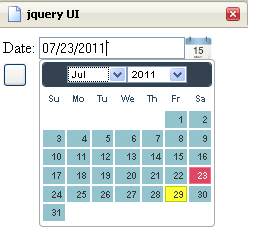
Using DatePicker in .Net

To use datepicker in .net page
1. Attach the following links and scripts to your page:


2. Add The following code into script tags.


3. Add the following code into your form:


4. modify the CSS File of the JQuery UI

The result is:

Resize JQuery UI DatePicker

Hello Programmers,
sometimes its useful to use on the shelf components in your code, but the challenge rises when you want to customize your used objects.
One of the reused components is the JQuery UI datepicker, which you can view its documentation on datepicker by JQuery UI.
The link provides you with alot of options and choises to be customized. But what about resizing datepicker???

well, i have tried alot of things to resize datepicker. and finally came with this solution that i wanna share with you:
one of the files you must use is the: jquery-ui-1.8.14.custom.css, where all themes and styles goes on, at the end of the file simply add the following lines of code:

@import "ui.base.css";

@import "ui.theme.css";
div.ui-datepicker { font-size: 62.5%; }
 
save the file and see you resized datepicker on the web.
Some people said that you can add a style to your page and add the style:
div.ui.datepicker
{
    font-size:10px;
}
but it didnt work for me.
 
hope this was useful for you
 
 
enjoy.
Jalal Hijazi